
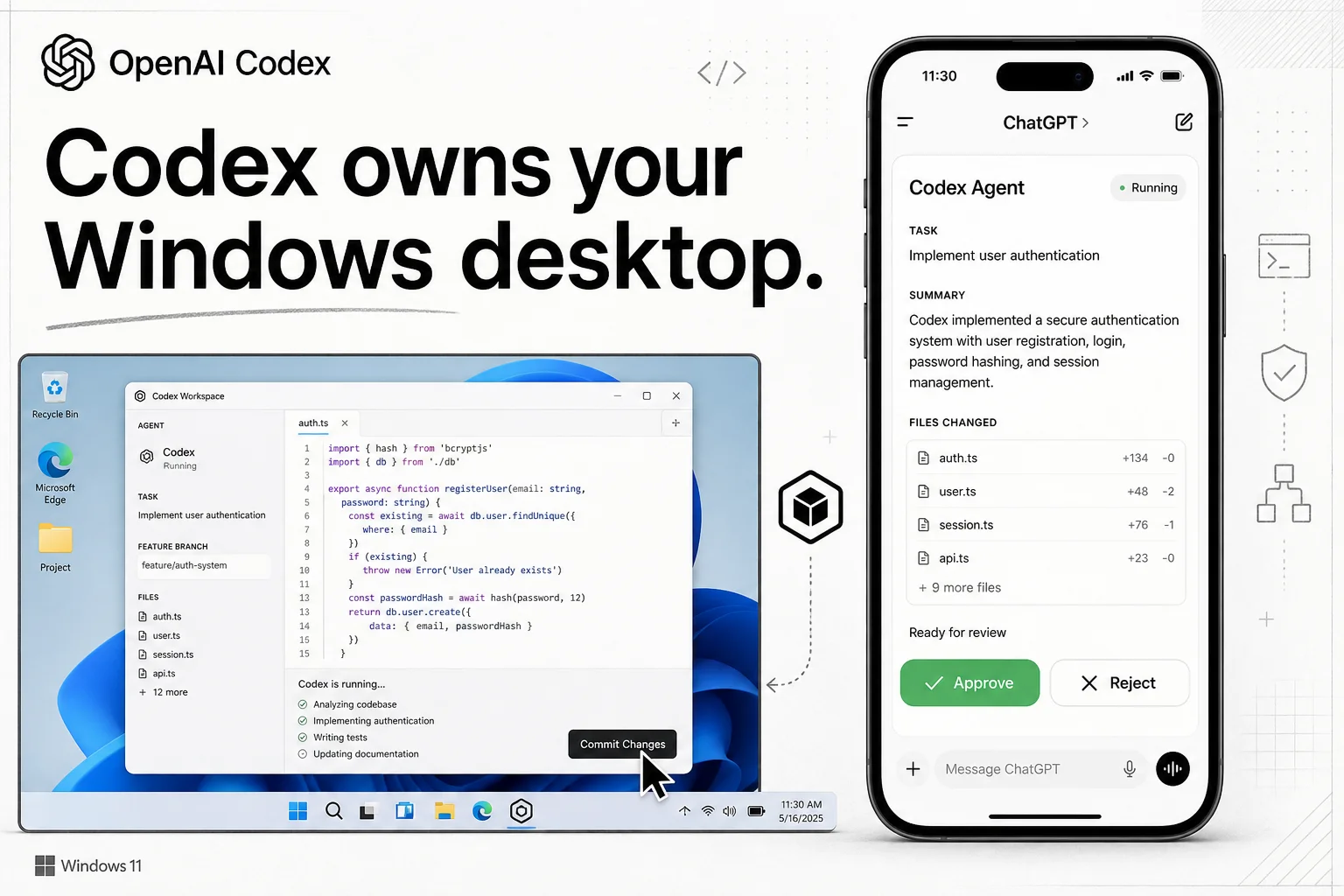
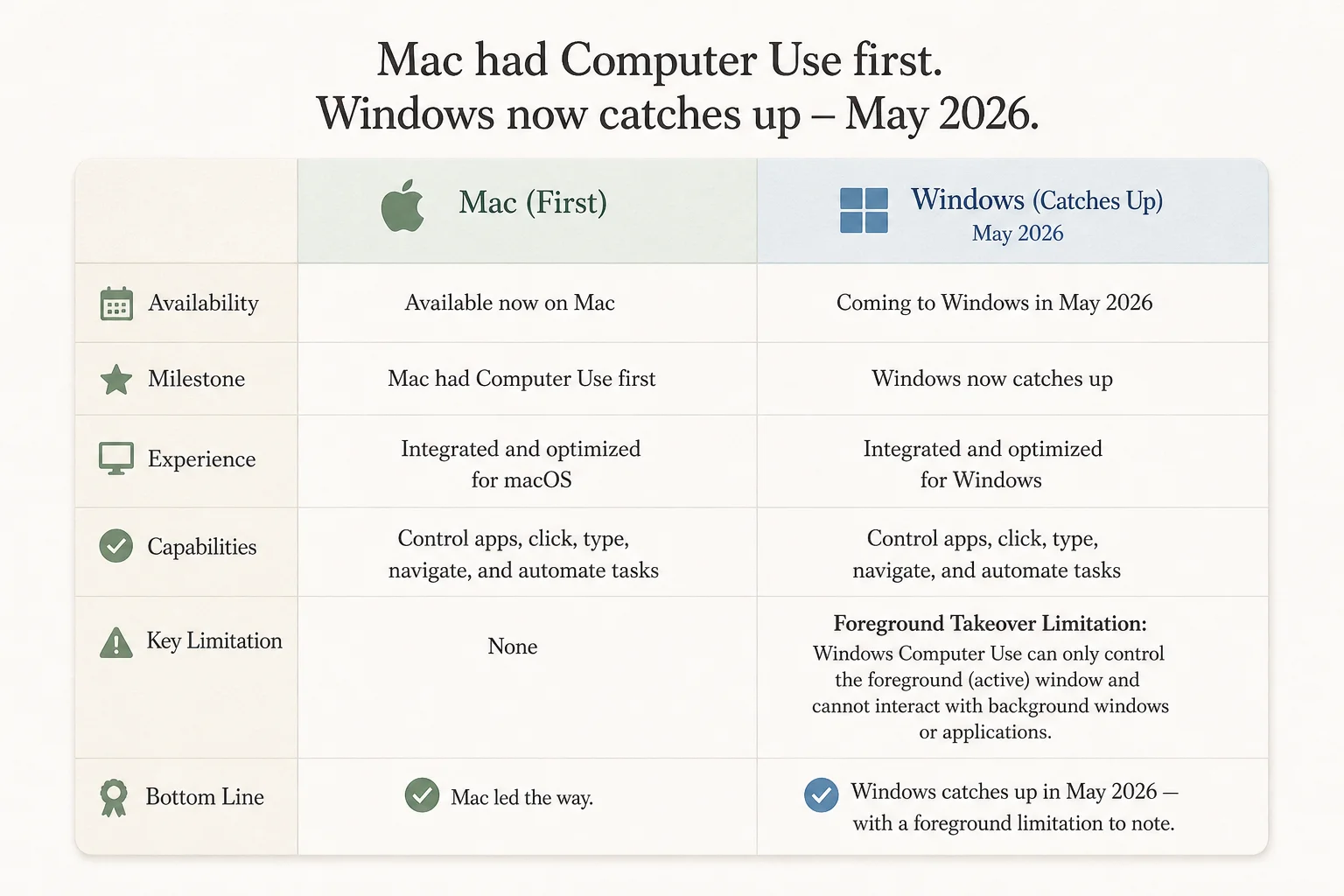
Mac users had Computer Use first. Windows caught up on May 29, 2026, and the pairing that matters is not just desktop control. It is desktop control plus phone supervision.
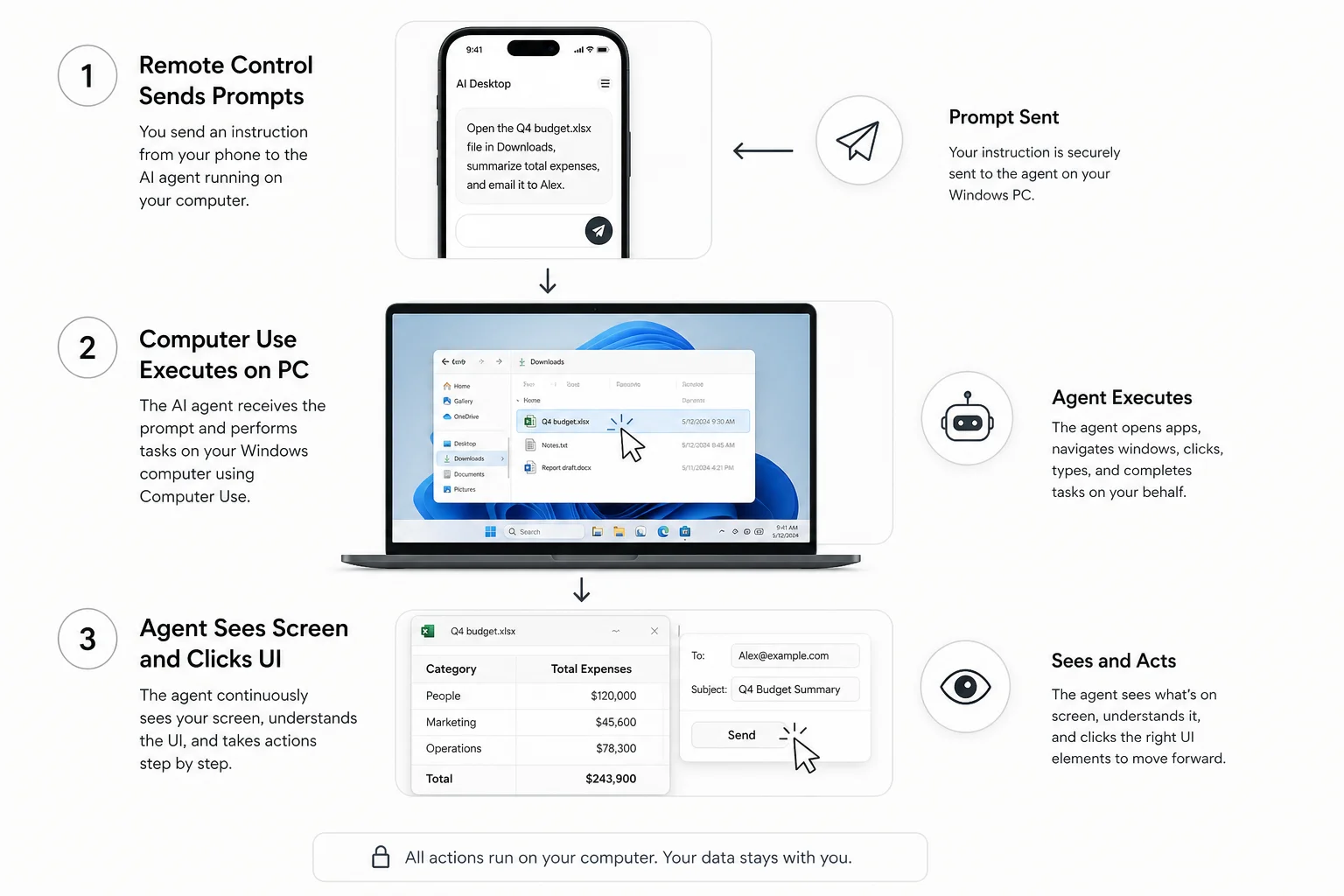
OpenAI's Codex Computer Use docs now cover Windows alongside macOS. Codex can see your screen, click through native apps, and type into UI surfaces that have no API. You can steer the whole session from the ChatGPT mobile app on iOS or Android: start threads, approve actions, review diffs, and send follow-ups without sitting at the keyboard.
That is a different product shape than "chat that suggests code." It is closer to a worker at your machine who can run the app they just changed and report what they saw.
What actually shipped in v26.527
The May 29 Codex desktop release bundled three things builders should track separately:
| Feature | What it does | Why it matters |
|---|---|---|
| Computer Use on Windows | Sees, clicks, and types in foreground Windows apps | UI bugs and desktop flows you cannot verify from files alone |
| Mobile remote control for Windows hosts | ChatGPT mobile (or Codex on Mac) drives a connected Windows PC | Supervise long runs from a phone |
| Codex Profiles | Usage stats and token activity in the profile section | Finance and capacity planning for agent spend |
Computer Use is not on by default for every tenant. Enterprise admins may need to enable the plugin. On Windows you install it from Plugins > Computer Use inside the ChatGPT desktop app when you are in Work or Codex mode.
Trigger it in prompts with @Computer for the generic desktop surface, or @Chrome, @Notepad, and other app names when you want a specific target.
Foreground takeover is the design constraint
On macOS, Computer Use can work with Screen Recording and Accessibility permissions in a more flexible setup. On Windows, the constraint is blunt: foreground only.
Codex cannot operate in the background while you keep using the same Windows session. Expect the pointer to move, keys to type, and the target app to take focus while the task runs. If you need the PC for something else at the same time, you are fighting the product.
That sounds like a limitation. For agent workflows it is actually a clear boundary:
- Good fit: a dedicated Windows box, a VM, or a machine you treat as an execution host
- Bad fit: your daily driver laptop where you multitask during the agent run
OpenAI's own guidance for unattended Windows tasks: keep the device unlocked and online, then supervise from the phone. Another pattern is running the ChatGPT desktop app inside a Windows VM so Computer Use takes over the VM desktop instead of your main session.
I have shipped enough client automations to know that "runs on my laptop while I work" is where agents cause the most human friction. Foreground takeover forces an explicit host model early.
When Computer Use beats shell and MCP
Command-line tools, MCP servers, and browser automation cover a lot of agent work. Computer Use is for the gaps:
| Scenario | Why files and terminals fall short |
|---|---|
| Reproducing a UI bug after an installer wizard | The failure only appears after graphical clicks |
| Testing a desktop app with no API | No structured integration to call |
| Verifying onboarding or settings panels | State lives in widgets, not stdout |
| Checkout or auth flows in a live browser session | Visual confirmation beats log scraping |
This is the same reason computer-use agents keep showing up in product roadmaps. Real software still has graphical surfaces that resist clean automation.
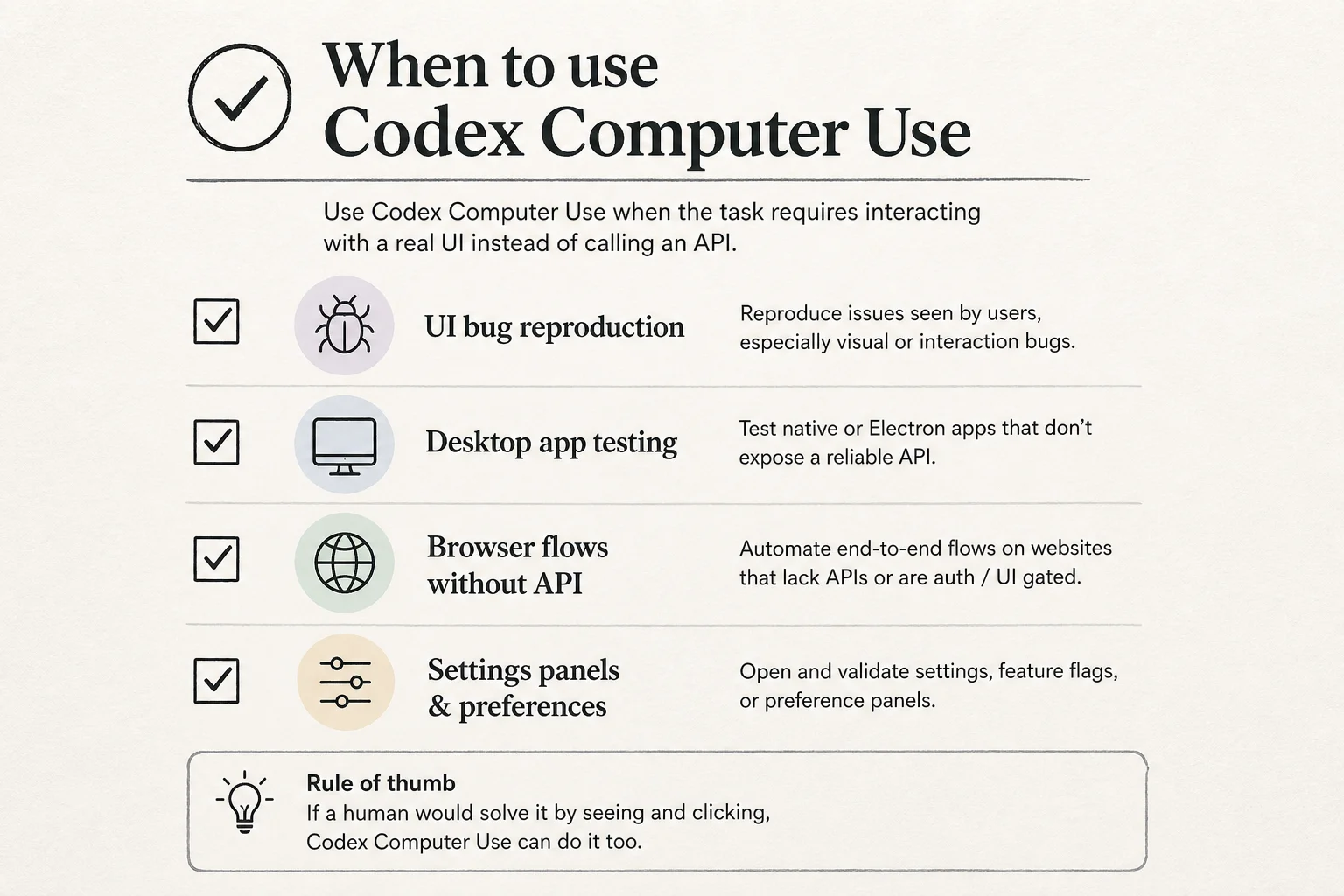
The digest headline framed it as Codex "controlling Windows from your couch." The engineering version is: verify visual flows the harness could not see before.
Mobile remote control changes who supervises
Before Windows host support, mobile Codex was useful but incomplete if your repo and shell lived on a Windows machine. v26.527 closes that gap.
Remote control does not move the dev environment onto the phone. Repository files, credentials, plugins, MCP servers, shell access, and Computer Use configuration still come from the connected host. The phone is a command and review console.
From mobile you can:
- Start or continue Codex threads against the Windows host
- Send follow-up instructions mid-run
- Approve or reject actions Codex proposes
- Review diffs and screenshots from the session
The same threads remain continuable from a Mac Codex client, so you are not locked into one supervision device.
For teams running long agent sessions, that supervision model matters more than the click automation itself. The Windows machine can stay dedicated to execution while a human returns only for decisions that need judgment.
Security and privacy you should plan for
Computer Use sends screen content through OpenAI's servers so the model can reason about what it sees. That is not a subtle detail. It is the core architecture.
Before you point Codex at a client database UI or an internal admin panel, write down what is on screen during a run:
| Risk | Practical mitigation |
|---|---|
| Sensitive data on screen | Use a VM, dummy accounts, or sanitized fixtures |
| Foreground takeover on a shared PC | Dedicated execution host, not a hot desk |
| Regional availability | EEA, UK, and Switzerland excluded at launch |
| Enterprise policy | Confirm plugin enablement with IT |
Connected browser controls and "always allowed apps" settings live under Settings > Computer use. Persistent app decisions can also land in $CODEX_HOME/config.toml on some setups.
Computer Use is powerful because it is invasive. Treat screen contents like outbound data, not like local-only inference.
Windows setup pain I would budget time for
Early Windows reports include node_repl / Computer Use failing with windows sandbox failed: spawn setup refresh and os error 740 (elevation required). GitHub issues document workarounds:
[windows]
sandbox = "unelevated"
Some users needed Full access mode or administrator elevation for the first successful Computer Use session. Normal sandboxed shell commands could still work while Computer Use failed, which makes this feel like a separate code path rather than a generic permissions problem.
If you are rolling this out to a team, assume one afternoon of sandbox tuning before you demo "agent clicks through our app" to stakeholders.
How I would wire this into a shipping workflow
Computer Use is not a replacement for tests. It is a pre-test exploration layer when you do not yet know which buttons matter.
A workflow I would actually run:
- Reproduce visually with
@Computeror@AppNameon a VM snapshot - Capture the minimal shell or Playwright path once the flow is understood
- Commit automated coverage so the expensive screen loop does not run on every CI pass
- Keep mobile supervision for the exploratory phase when failure modes are unknown
That mirrors how I treat other agent tools. Let the agent explore when the map is missing. Lock the path once the map exists.
Pair this with model routing if you are cost-sensitive. I wrote separately about why cost per task beats defaulting to frontier models for long agent loops. Computer Use runs add vision and tool turns on top of that bill.
Regional and product gaps to watch
| Gap | Status |
|---|---|
| EEA / UK / Switzerland | Not available at launch |
| Background Windows execution | Not supported; foreground or VM |
| Enterprise default-off plugin | May need admin enablement |
| Europe expansion | Watch OpenAI changelog |
If your team is EU-based, this is a "watch the rollout" feature today, not a production default.
Takeaway
Codex Computer Use on Windows turns the coding agent into a desktop operator, not just a diff generator. Foreground takeover and server-side screen processing are real constraints. Mobile remote control makes those constraints easier to live with by moving supervision off the physical keyboard.
If you are designing agent workflows that touch graphical software (desktop clients, legacy admin UIs, installer wizards), this is worth a structured pilot on a dedicated host. If you want help scoping that pilot and the security boundaries around it, book a free discovery call.